If you’re looking for a simple way to protect your internet connection on your phone or computer, a VPN can be a useful tool.
ExpressVPN is available for Windows, Mac, Linux, Android, iPhone, iPad, routers, smart TVs, and several other platforms. The basic setup is pretty straightforward: download the official app, sign in, choose a server, and connect.
In this ExpressVPN App Download & Setup Guide, we’ll walk through the process step by step, including what to do if activation doesn’t work.
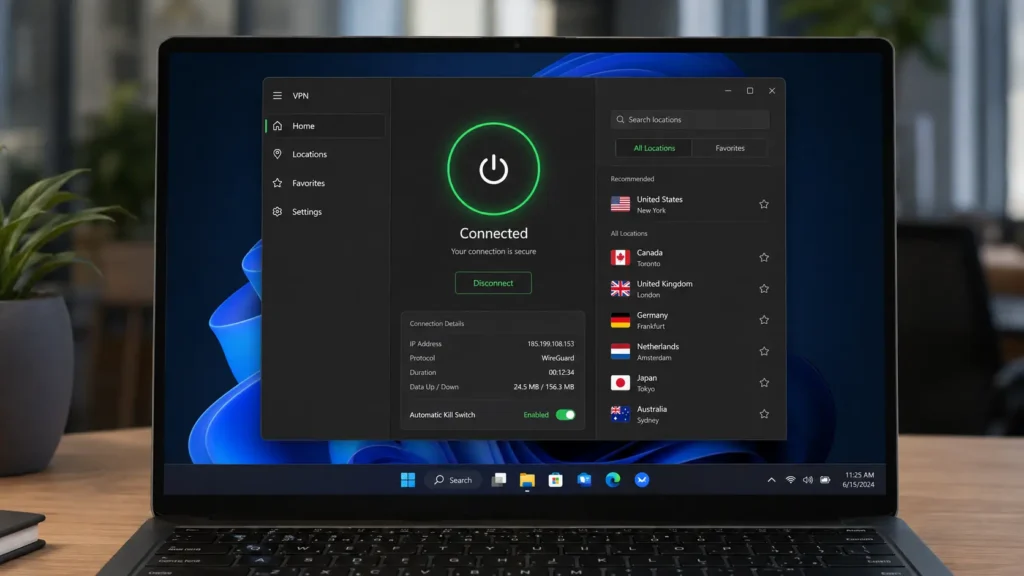
What Is ExpressVPN?
ExpressVPN is a VPN service that creates an encrypted connection between your device and a VPN server.
Once connected, your internet traffic travels through that VPN connection, and websites generally see the IP address associated with the VPN server rather than your regular public IP address.
People commonly use VPNs when they want additional privacy on public Wi-Fi, while traveling, or when they simply want their internet connection routed through a different location.
ExpressVPN provides dedicated apps for major operating systems and devices. Its current setup documentation covers Windows, macOS, Linux, Android, iOS, Android TV, Apple TV, Fire TV, routers, and more.
Is ExpressVPN Free to Download?
Yes. The ExpressVPN app itself is free to download.
However, using the VPN service requires an ExpressVPN subscription.
Avoid downloading modified, cracked, or unofficial versions of the app. Besides creating security risks, unofficial installers may contain unwanted software.
For the safest installation, use the official ExpressVPN website or your device’s official app store.
ExpressVPN App Download for Windows
If you’re using a Windows PC, the current ExpressVPN app supports Windows 10 and Windows 11. There is also a separate version for Windows 11 computers using ARM64 processors.
Step 1: Sign In to Your ExpressVPN Account
Open the official ExpressVPN website and sign in to your account.
From the account dashboard, look for the option to set up your devices.
Step 2: Download the Windows App
Select Windows and choose the download option.
Keep your browser window open during setup because you may need the activation information shown in your account dashboard.
[IMAGE UPLOAD HERE: ExpressVPN account dashboard with the Windows download option highlighted]
Step 3: Install ExpressVPN
Once the installer finishes downloading:
- Open the downloaded file.
- Allow Windows to make changes if prompted.
- Wait for the installation to finish.
- Open ExpressVPN.
The app should launch automatically after installation.
Step 4: Sign In
Click Sign In inside the ExpressVPN application.
Depending on your account and current app version, you may be offered options such as an email sign-in link, password, or activation code.
How to Download ExpressVPN on Mac
Mac users can download the official ExpressVPN application through their account setup page.
The current Mac app supports macOS 11 and newer versions.
The basic process is:
- Sign in to your ExpressVPN account.
- Open the device setup section.
- Select Mac.
- Download the application.
- Open the installer.
- Follow the on-screen instructions.
- Sign in to the app.
- Allow any required VPN configuration permissions.
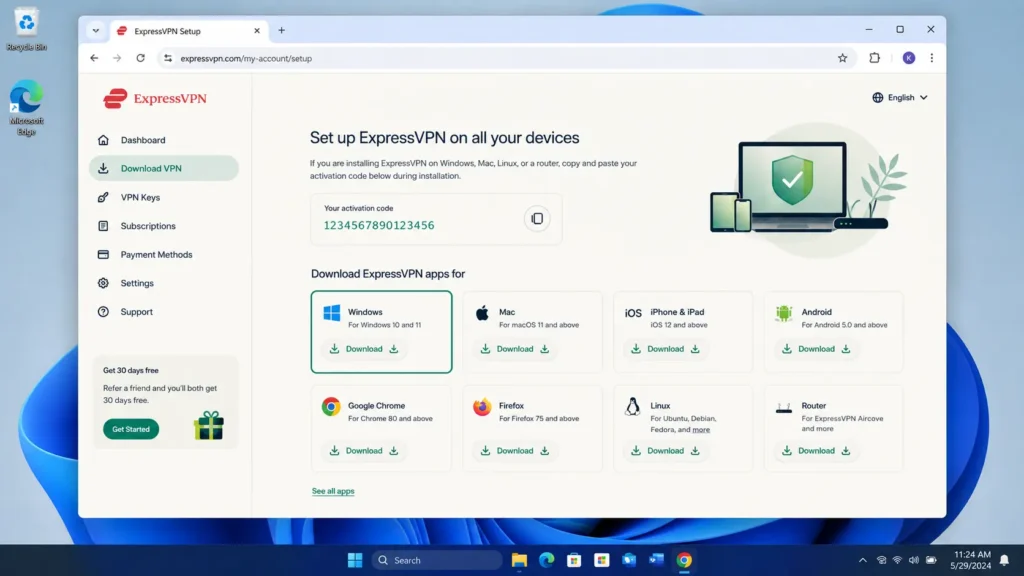
Once setup is complete, the ExpressVPN dashboard should be ready for your first connection.
ExpressVPN App Download for Android
Android installation is even easier.
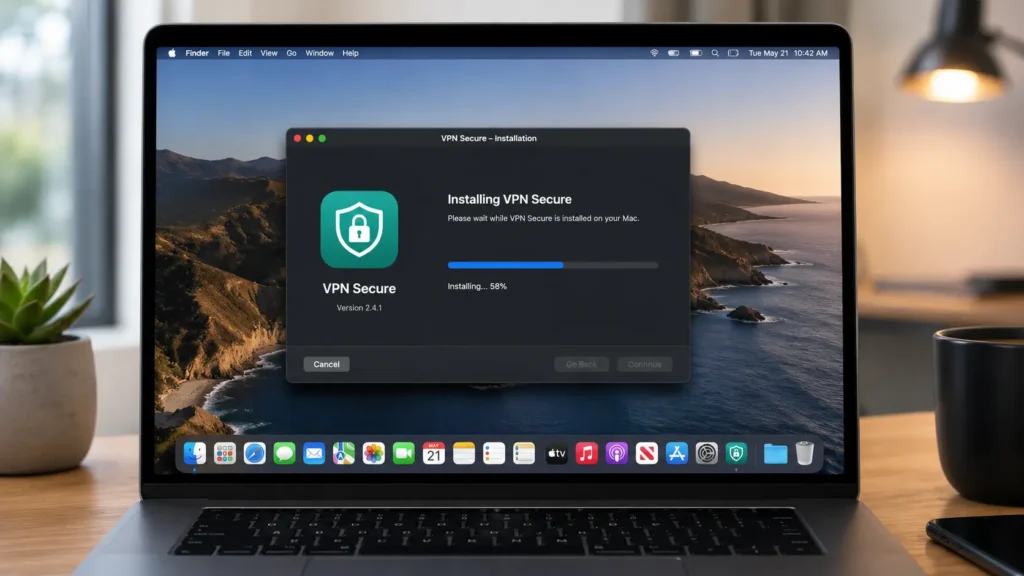
From Google Play
Open the Google Play Store and search for ExpressVPN.
Check that you’re installing the legitimate ExpressVPN application, then tap Install. ExpressVPN also supports Android-based devices such as compatible Chromebooks.
After installation:
- Open ExpressVPN.
- Accept the required terms.
- Sign in to your account.
- Follow the setup prompts.
- Allow the VPN connection when Android asks for permission.
- Choose a server location.
- Tap Connect.
How to Install ExpressVPN on iPhone or iPad
For iPhone and iPad users, open the App Store and search for ExpressVPN.
Tap Get or the cloud download icon to install it. The current iOS setup guide covers iOS 15 and newer.
Finish the iPhone Setup
After opening the app:
- Accept the required terms.
- Choose your data-sharing preferences.
- Tap Sign In.
- Enter your account details or use the available sign-in method.
- Continue through the setup.
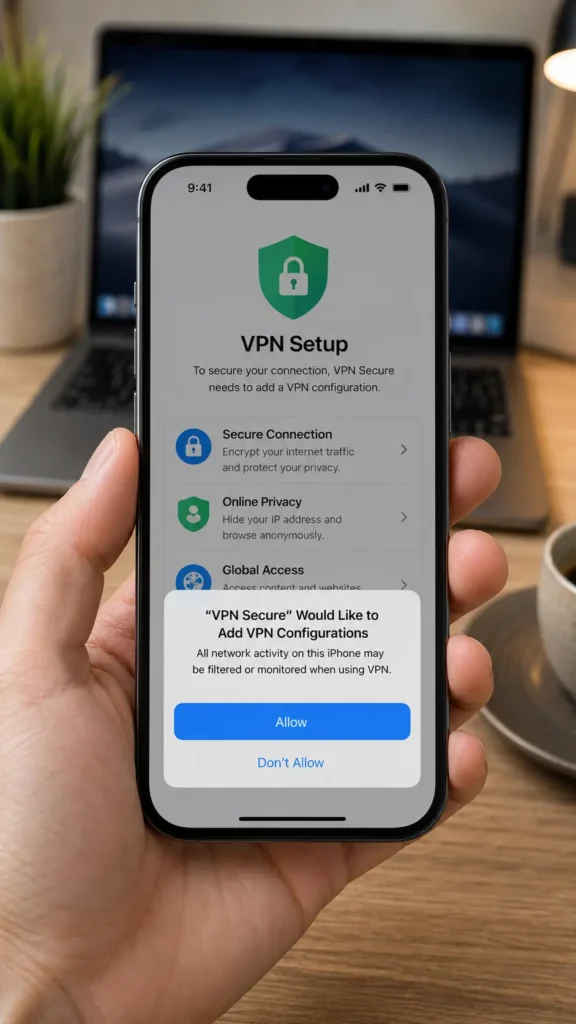
- When iOS asks to add a VPN configuration, tap Allow.
- Enter your device passcode if requested.
That VPN configuration permission is important. Without it, the app can’t complete the VPN connection setup.
How to Connect ExpressVPN
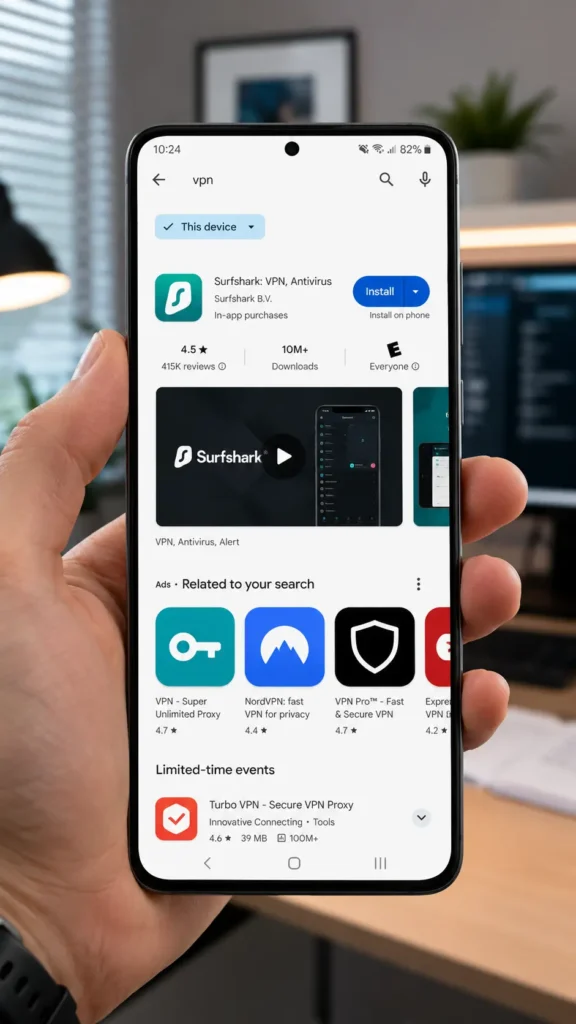
Once the app is installed and you’re signed in, connecting is simple.
On Your First Connection
- Open ExpressVPN.
- Choose a server location.
- Press the large Connect button.
- Wait for the connection to establish.
When the VPN connection is active, the app will indicate that you’re connected.
For everyday browsing, a nearby server is often a sensible starting point because physical distance can affect connection speed.
How to Choose a VPN Server
ExpressVPN lets you choose from different server locations.
You might select a location based on:
- Your physical location
- Connection speed
- A specific country you need
- A particular city
- Your everyday browsing needs
For regular US browsing, choosing a nearby US location can be a practical option.
If you’re traveling internationally, you can also select another available location.
Remember that changing your VPN location does not make you anonymous online. Websites, apps, browser settings, cookies, and account logins can still provide information about you.
What Is an ExpressVPN Activation Code?
An activation code is used to activate the ExpressVPN application on a device.
It is not the same thing as the verification code that may be sent to your email when you sign in to your ExpressVPN account.
This distinction is important because entering the wrong code can cause activation to fail.
Where to Find Your Activation Code
Sign in to your ExpressVPN account dashboard.
Then:
- Open the ExpressVPN section.
- Go to the VPN area.
- Find the activation code.
- Use the copy option to avoid typing errors.
ExpressVPN’s current documentation recommends copying the code directly from the account dashboard.
ExpressVPN Activation Code Not Working?
Don’t panic if the app refuses to activate.
One common reason is using an email verification code instead of the actual VPN activation code.
Try these steps:
1. Check the Code
Sign in to your ExpressVPN account and locate the current activation code.
Copy it again and paste it into the app.
2. Make Sure Your Subscription Is Active
Check your account to make sure your subscription hasn’t expired.
3. Try Another Sign-In Method
Depending on the app version, ExpressVPN may provide alternative sign-in methods.
If an email sign-in link doesn’t activate the app properly, ExpressVPN recommends using the activation-code method instead.
4. Restart the App
Close ExpressVPN completely and open it again.
If necessary, restart your device before trying activation again.
How to Disconnect ExpressVPN
Disconnecting is just as easy as connecting.
Open the ExpressVPN app and press the Disconnect button.
Your device will return to its normal internet connection.
You can reconnect whenever you want from the same app.
ExpressVPN Settings Worth Checking
After installation, you may want to review a few settings.
Depending on your device and app version, ExpressVPN offers features such as:
- Auto-connect
- Kill switch
- Split tunneling
- Protocol selection
- Startup connection options
- Network protection features
Not every feature is available on every platform, so your settings menu may look different depending on the device you’re using.
Auto-Connect
Auto-connect can be useful if you frequently use public Wi-Fi.
Instead of manually connecting every time, the app can be configured to connect automatically under supported conditions.
Kill Switch
A VPN kill switch is designed to help prevent internet traffic from continuing outside the VPN connection if the VPN unexpectedly drops.
This can be useful when maintaining a VPN connection is important to you.
Split Tunneling
On supported platforms, split tunneling lets you decide which apps use the VPN and which apps use your regular internet connection.
This can be handy when you only want certain applications routed through the VPN.
Is ExpressVPN Safe to Download?
The safest approach is simple: download the app from an official source.
For desktop devices, use ExpressVPN’s official download and setup pages. For mobile devices, use the Google Play Store or Apple App Store where available.
Don’t use:
- Cracked APKs
- Modified apps
- Pirated installers
- Random download websites
- Unofficial activation codes
A VPN is supposed to improve your privacy. Installing an unknown modified application defeats the point.
Common ExpressVPN Setup Problems
The App Won’t Install
Check that your operating system meets the current requirements.
For example, the current ExpressVPN Windows app supports Windows 10 and above, while the current Mac app requires macOS 11 or newer.
The VPN Won’t Connect
Try:
- Checking your internet connection.
- Switching to another available server.
- Restarting the ExpressVPN app.
- Restarting your device.
- Checking whether the app has an available update.
The App Keeps Disconnecting
A weak Wi-Fi or mobile connection can cause problems.
Try another network if possible. You can also test a different VPN server or protocol available in your app.
ExpressVPN Isn’t Showing in the App Store
App availability can depend on the App Store country or region. ExpressVPN’s iOS documentation notes that users who don’t see the app may need to use an App Store location where it is available.
Final Thoughts
Setting up ExpressVPN doesn’t have to be complicated.
For most users, the process is simply:
Download → Install → Sign In → Choose a Server → Connect
The key is to use the official application and keep your login and activation information secure.
If you’re installing ExpressVPN on a Windows PC, Mac, Android phone, or iPhone, the official setup process should only take a few minutes once you have an active account.
Frequently Asked Questions (FAQ)
1. How do I download the ExpressVPN app?
Go to the official ExpressVPN website for desktop devices, or search for ExpressVPN in the Google Play Store or Apple App Store on supported mobile devices. Download the official application and follow the setup instructions.
2. Is ExpressVPN free to download?
Yes. The app can be downloaded for free, but an ExpressVPN subscription is required to use the VPN service.
3. Why isn’t my ExpressVPN activation code working?
Make sure you’re using the VPN activation code rather than the email verification code. You can find the current activation code inside your ExpressVPN account dashboard.
4. Can I use ExpressVPN on my phone and computer?
Yes. ExpressVPN provides apps for major platforms, including Windows, Mac, Android, and iOS, along with support for additional devices and platforms.